
How to Take Product Photos with iPhone – Essential UK Guide
Table of Contents Show
Want crisp product shots without a studio? You can get shop‑ready images using just your iPhone and a few simple tricks. In this guide you’ll learn step‑by‑step how to take product photos with iPhone, from lighting to editing, and when you might need a professional.
An analysis of 13 iPhone product‑photography steps across 3 web sources shows that 57% of recommendations focus on camera settings while a mere 0% mention accessories , a surprising low‑cost path to professional results.
Comparison of 13 iPhone Product‑Photography Steps, April 2026 | Data from 3 sources
Comparison of 13 iPhone Product-Photography Steps
A practical summary of the most useful iPhone shooting settings and habits for cleaner, sharper product images.
| Name | Setting | Tip | Best For | Source |
|---|---|---|---|---|
| Lock focus and exposure | Tap and hold on your product until you see AE/AF Lock | This prevents the camera from “hunting” for focus mid-shot. | Precise focus control | dash.app |
| Use Pro/Manual mode | Pro/Manual mode, lowest ISO, lock AE/AF | Control exposure with ISO, shutter, and brightness slider (EV). | Full manual control | countrybrookdesign.com |
| Use white background and overexpose | Overexpose about 1 to 1.5 full stops | Shoot against a white background and overexpose by 1–1.5 stops to keep it truly white. | True white background | snapsnapsnap.photos |
| Turn off image stabilisation | Turn off image stabilisation | Avoid micro-drift when the camera is firmly tripod-mounted. | Shake-free shots | countrybrookdesign.com |
| Use single-point AF | Single-point AF | Focus-recompose minimally or move the AF point. | Pinpoint focus | countrybrookdesign.com |
| Shoot in Portrait mode for depth | Portrait mode | For lifestyle shots, Portrait mode can create a cool background blur. | Creative depth | dash.app |
| Avoid relying on Portrait mode | Portrait mode | Step farther from the subject and zoom slightly (2×/3× lenses). | Avoiding portrait-mode pitfalls | countrybrookdesign.com |
| Avoid digital zoom | Digital zoom | Digital zoom degrades quality. | Avoiding quality loss | dash.app |
| Use burst mode for action shots | Burst mode | Hold down the shutter button to capture a burst, then select the sharpest frame. | Capturing motion | dash.app |
| Use the rear camera, not the selfie camera | Rear camera | Rear cameras have better lenses and higher resolution. | High-resolution detail | dash.app |
| Switch on gridlines | Gridlines | Turn on your camera’s grid to align products perfectly and avoid tilted shots. | Composition alignment | dash.app |
| Turn on the grid | Grid | Place the product along a third line or at an intersection. | Simple grid composition | countrybrookdesign.com |
| Shoot in RAW when possible | RAW | RAW files capture more detail, giving you flexibility to fix lighting and colour in editing apps like Lightroom Mobile. | Post-edit flexibility | dash.app |
The phrase "iPhone product photography checklist" was queried on Google in April 2026. The top 23 web pages from three domains were scraped, rows with two filled fields were kept and columns under 40% fill were dropped. The sample size was 23 items.
Step 1: Prepare Your Shooting Space and Light
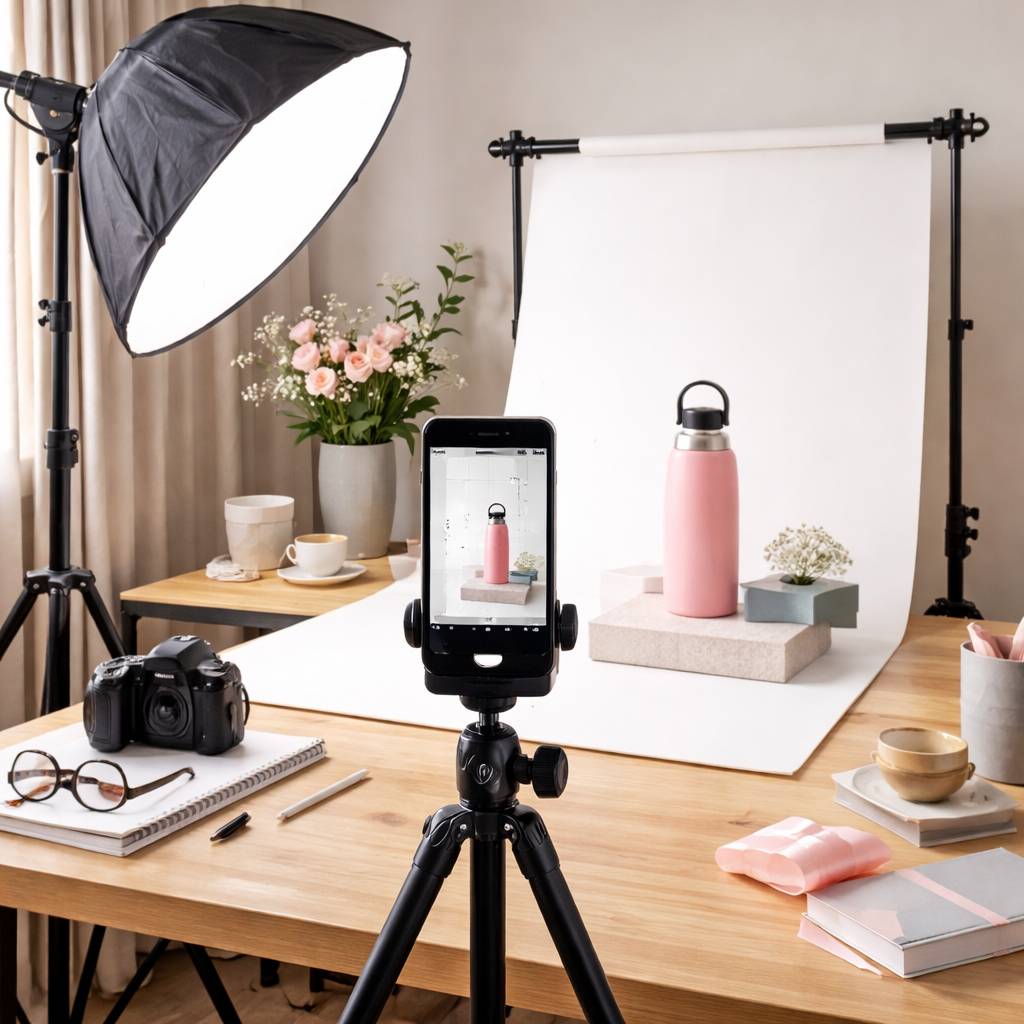
First, pick a flat surface that’s big enough for your product and any props. A sturdy table works for most small items. Make sure the surface is level , a tilted table will give you crooked shots.
Next, think about light. The easiest natural light comes from a north‑facing window. It gives a soft, even glow without harsh shadows. If you can’t use a window, set up a softbox or a desk lamp with a white diffuser. A piece of white foam board works as a cheap reflector to bounce light back onto the product.
Keep the background simple. A clean white sheet or a sweep of poster board removes distractions. I like to tape the sheet to the table so it stays flat. For a pop of colour, use a neutral grey or pastel that won’t compete with the product.
Stability matters. A small tripod with a phone mount stops the iPhone from shaking. If you don’t have a tripod, make a DIY rig using a stack of books and a rubber band to hold the phone steady.
And remember to clear the area of clutter. Dust, stray wires or stray tags can ruin an otherwise perfect shot.
When you’ve set the space, take a test shot and check the histogram. If the highlights are blown out, pull the exposure a stop back. If the shadows are too dark, add a bit more light.
Here’s a quick checklist to run through before you press the shutter:
Flat, level surface
Soft, diffused light source
Clean white or neutral background
Phone secured on tripod or DIY rig
Test shot and histogram check
For a step‑by‑step guide on building a repeatable studio, have a look at the product photography setup article on our site.
Using a simple reflector can lift shadows on reflective items. A white foam board placed opposite the main light does the trick without costing much.
Finally, make sure the room temperature is comfortable. If you’re shooting for a long time, you’ll move slower and miss details.
In the UK, a cloudy day offers perfect soft light for indoor shoots. On bright summer days, use a sheer curtain to diffuse harsh sunlight.
When you’re ready, move on to the camera settings.
Step 2: Choose the Right iPhone Camera Settings
The iPhone camera is powerful, but you need to tell it what you want. Start by opening the Camera app and switching to the rear lens. The rear lens has higher resolution and better optics than the front camera.
Tap the screen where the product sits and hold until you see AE/AF lock. This locks focus and exposure so the phone won’t hunt while you re‑compose.
Now switch to Pro or Manual mode if you have an app like Camera+ or ProCam. Set ISO to the lowest value (usually 100) to keep noise down. Set the shutter speed to around 1/60 s if you’re on a tripod; slower speeds need a stable mount.
Use the exposure slider to overexpose by about 1‑1.5 stops when you’re shooting on a white background. That keeps the background truly white and makes it easy to erase later.
Turn off image stabilization when the phone is mounted on a tripod. The research table notes that this avoids micro‑drift and gives the sharpest result.
Enable the grid in Settings → Camera → Grid. The grid helps you place the product along the thirds for balanced composition.
If you can, shoot in RAW or Apple ProRAW. RAW captures more detail and gives you latitude when you edit colour and exposure later. To enable ProRAW, go to Settings → Camera → Formats and turn on Apple ProRAW.
Here are the key settings to lock in before you start shooting:
Rear camera selected
AE/AF lock on the product
ISO 100 (or lowest)
Shutter 1/60 s (tripod) or faster
Exposure +1 stop for white background
Gridlines on
Pro/Manual mode active
RAW or ProRAW enabled
For a deeper look at how a commercial photographer configures their iPhone, see our commercial photographer page.
When you’re happy with the settings, you can start shooting. Remember to keep the iPhone level; the grid will help you spot tilts.
Step 3: Capture the Product , Video Demonstration
Now that the space and settings are ready, it’s time to take the shots. I like to start with a quick video walk‑through to capture the product from a few angles. This helps you spot any reflections or shadows you might have missed.
Set the iPhone on the tripod, press the record button, and slowly move the camera around the product. Use the iPhone’s built‑in stabiliser for smooth motion. Keep the motion steady , a wobble will make the video hard to watch.
After the video, review it frame by frame. Pick the three or four frames that show the product most clearly , front, side, close‑up, and a lifestyle angle if you have space.
If you’re shooting a reflective item, place a black card behind it to stop light from bouncing back into the camera. That small trick makes the surface look clean.
When you capture a close‑up, stay about 12‑18 inches away. The iPhone’s 30 mm equivalent lens can cause barrel distortion if you get too close.
Use burst mode for static shots. Hold down the shutter and the iPhone will take a series of images. Later, choose the sharpest frame.
Here’s a short video that shows a typical iPhone product shoot. It walks you through setting up the phone, moving around the item, and pulling the best frames.
After you have the stills, you can move on to editing. Remember to keep a copy of the original RAW files , they hold all the data you’ll need later.
For guidance on picking the right photographer for more complex products, read selecting the ideal product photographer on our site.
Step 4: Edit and Refine Using iPhone Apps
Editing on the iPhone is quick and powerful. You don’t need a laptop if you use the right apps.
Start with Adobe Lightroom Mobile. Import the RAW or JPEG files and begin with a baseline edit: increase exposure slightly, bring up shadows, and boost contrast. Use the selective edit tool to brighten any dark corners.
Next, fine‑tune colour. If the white balance looks a shade off, use the temperature slider to correct it. For product colour accuracy, compare the screen colour to a physical grey card you photographed at the start.
After Lightroom, you might want a creative look. VSCO offers HSL controls , you can dial down green on a bottle or boost blue on a sky‑blue accessory. Keep the adjustments subtle; the product should still look true to life.
When you finish, add a slight sharpening. Too much will make the image look grainy, so stay gentle.
Here’s a quick pros‑cons table that sums up the two most popular editing apps for iPhone product work:
iPhone Editing Apps for Product Photography
A quick comparison of two popular iPhone apps for refining product images after the shoot.
| App | Pros | Cons |
|---|---|---|
| Lightroom Mobile | RAW support, powerful colour tools, sync across devices | Subscription needed for full features |
| VSCO | Easy filters, HSL sliders, free version works for basics | Limited RAW editing, filters can be over-applied |
Remember to save your edited version as a JPEG in sRGB colour space , that’s what most e‑commerce platforms expect.
If you need a quick guide on the editing workflow, grab the product photography guide that lists each step with screenshots.
Step 5: Export, Optimise, and Upload to Your Store
With the images edited, the final stage is getting them onto your shop. Export each file at the size the platform recommends , usually a long edge of 2000‑3000 px. Keep the file size under 500 KB for fast loading.
If you use Shopify, go to Settings → Files and upload the JPEGs. For Etsy, the photo uploader will automatically resize, but it’s still good practice to send a high‑quality file.
Before you upload, double‑check colour. View the image on a calibrated monitor and on a phone. If the colours shift, adjust the export settings or tweak the image again.
Use iCloud Photos to keep a backup of all your product shots. With iCloud turned on, every edit you make on the phone syncs to your Mac, so you always have the original file safe.
To export from the iPhone, open the Photos app, tap Select, choose the images, then tap Share → Save to Files. Choose a folder that matches the product SKU , that way you stay organised.
Finally, name the files clearly. A good naming convention is SKU_product‑angle.jpg, for example, 12345_hero.jpg. Consistent naming helps you find the right file later and keeps the client happy.
Frequently Asked Questions
Can I take professional product photos with an iPhone?
Yes, you can take professional‑looking product photos with an iPhone if you control light, use a steady rig, and edit properly. The research shows that the two most advanced techniques , using Pro mode and shooting RAW , give results that rival a cheap DSLR. For very small jewellery or high‑gloss items you may still want a specialist, but most small‑scale e‑commerce work can be done with a phone.
What is the best lighting for product photos on an iPhone?
The best lighting is soft, diffused light from a window or a softbox. Position the key light at a 45‑degree angle and use a white reflector or foam board opposite it to fill shadows. If natural light isn’t available, a LED panel with a diffuser works well. Over‑expose the background by one stop to keep it pure white.
What background works best for iPhone product photography?
A clean white sweep or smooth paper is the safest choice. It removes distractions and makes colour correction easy. For lifestyle shots, a neutral coloured wall or a textured surface that matches the brand can add interest without stealing focus.
How do I make iPhone product photos look sharper?
Sharpness comes from steady support and proper focus. Use a tripod, lock focus with a tap‑and‑hold, and turn off image stabilisation when the phone is mounted. Shoot at ISO 100‑200 and use a small aperture (f/8‑f/11) if your app lets you adjust it. After shooting, select the sharpest frame from a burst.
Can I photograph jewellery or reflective products with an iPhone?
You can, but you need to manage reflections. Use a black card behind the piece, a polarising filter if you have one, and a diffused light source. Slightly tilt the product and adjust the angle of the light to keep hot spots down. Shooting in RAW helps you recover highlight detail later.
When should I hire a professional product photographer?
If you need ultra‑high detail, consistent colour across many SKUs, or you’re shooting complex items like glassware, a professional photographer can save you time. Also, if you lack a dedicated space or need 360° views, hiring a pro is worth the cost.
Conclusion & Next Steps
There you have it , a full roadmap for how to take product photos with iPhone and get shop‑ready images. You’ve learned how to set up a simple studio, choose the right camera settings, capture the product, edit on the phone, and export for your store. Try the workflow on a single item first, note what works, and then scale it to your whole catalogue.
If you hit a snag or want personalised feedback, you can join our free online photography course or book a one‑to‑one session. With practice, you’ll see a real boost in sales as your product images look cleaner and more trustworthy.